Home › Setup Guide
IBO Player setup guide for IronTV
The complete installation walkthrough — Fire TV Stick, Android, Windows, macOS, LG and Samsung — with the screens you will actually see. Around eight minutes from download to first channel.
Before you start: have your IronTV email open. You need the username, password and playlist URL we sent after your order. Not a subscriber yet? Take the CA$10.99 intro month first — the steps below are identical on every plan.
What IBO Player is, and why it is the only app we support
IBO Player is a dedicated IPTV client built for televisions and streaming sticks rather than phones. It is deliberately simple: a dashboard, a live grid, a movies shelf, a series shelf and a settings panel. IronTV issues credentials exclusively for IBO Player, which is why our support desk can diagnose a problem in minutes instead of guessing at a third-party client's behaviour.
Its strengths
- It installs almost anywhere. Android, Fire OS, webOS, Tizen, Windows, macOS, Linux and MAG-style boxes are all covered by the same playlist.
- It is the sensible choice for non-Android smart televisions. LG and Samsung owners get a native app rather than a sideloaded workaround.
- Playlists live on the device record, not the app. Change television and your line follows once you register the new MAC address.
Its limits — worth knowing up front
- No recording. There is no PVR function; catch-up on supported channels is the nearest equivalent.
- No multi-screen. One picture at a time, which matches the one-device rule on every IronTV subscription anyway.
- Remote playlist activation. The playlist is attached through the IBO portal, so you need a browser once during setup.
- The app carries a small one-off licence fee after its initial period. That charge belongs to IBO Player's developer, not to IronTV.
How to install IBO Player on Amazon Fire TV Stick
The Fire TV Stick is the most common IronTV device in Canadian living rooms. Because IBO Player is not in Amazon's store, you install it through the free Downloader app.
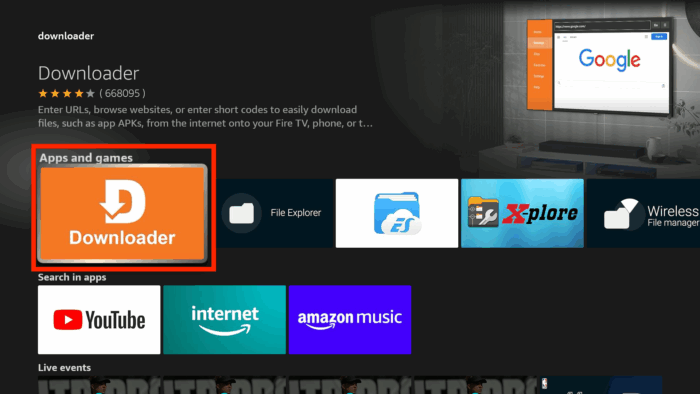
- From the Fire TV home screen, open Find › Search and install the Downloader application.
- Go to Settings › My Fire TV › Developer Options and turn on Install unknown apps for Downloader.
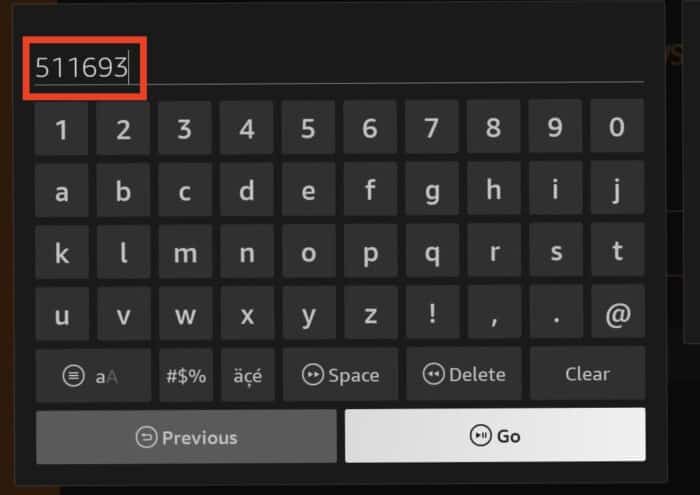
- Open Downloader and type the short code 511693 into the URL field, then press Go.
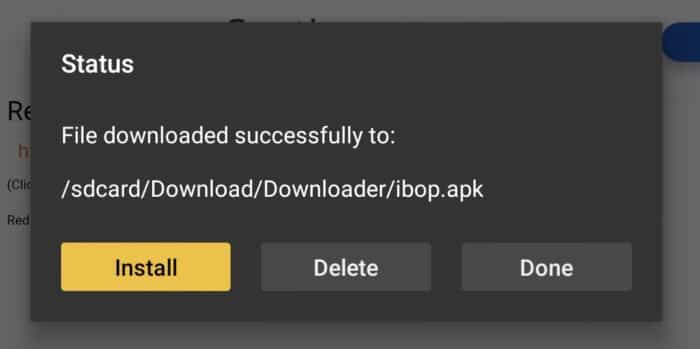
- Let the APK download finish, then choose Install, and Open when it completes.
How to install IBO Player on Android phones and tablets
Android is the quickest route of all, and useful for testing your IronTV line before you touch the television.
- Open the Play Store and search for IBO Player. Install it as you would any other app.
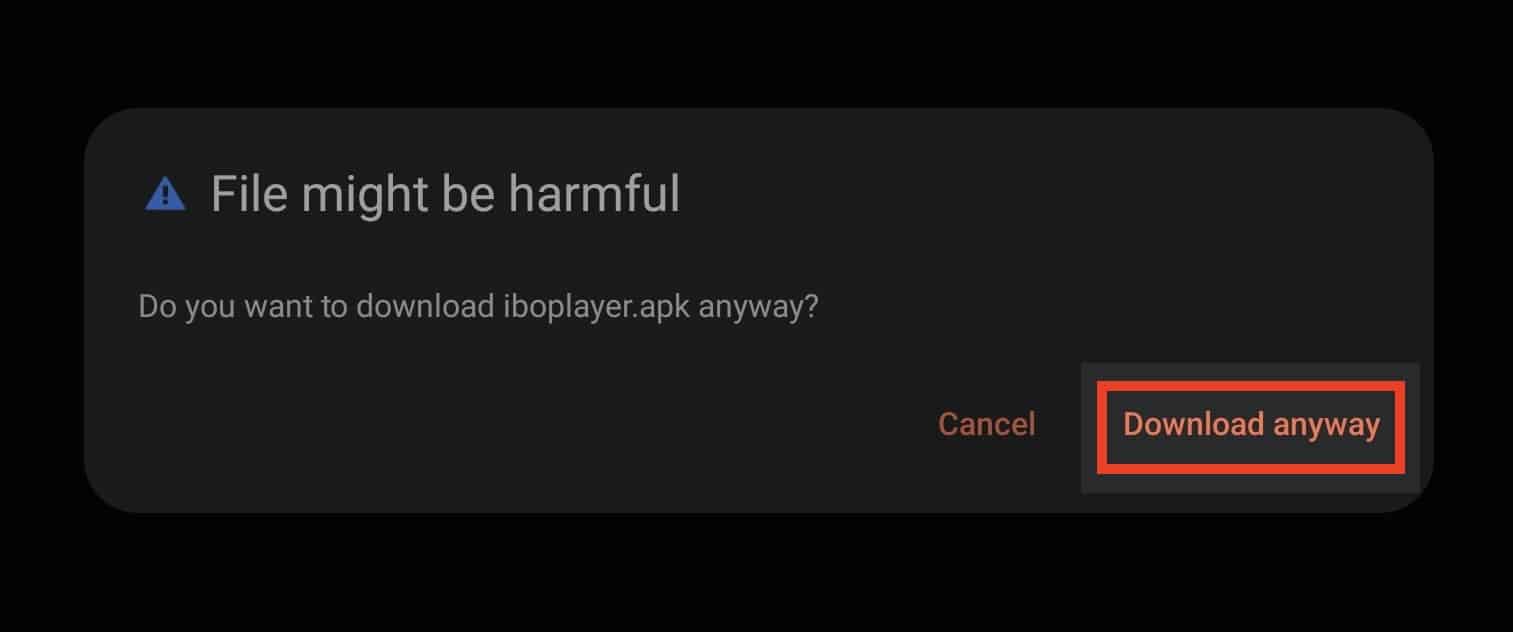
- If your device does not list it, download the APK from the official IBO Player site and allow installation from your browser under Settings › Apps › Special access.
- Launch the app. The opening screen shows your MAC address and device key — keep this screen visible.
How to install IBO Player on Windows and macOS
Handy for a desk setup or for checking a channel quickly without leaving your chair.
- Download the Windows installer (
.exe) or the macOS package (.dmg) from the official IBO Player download page. - Run the installer. On macOS you may need to allow the app under System Settings › Privacy & Security the first time.
- Open the application and note the MAC address and device key on the first screen, exactly as on Android.
How to install IBO Player on LG and Samsung televisions
No sideloading and no extra hardware — both platforms carry the app natively.
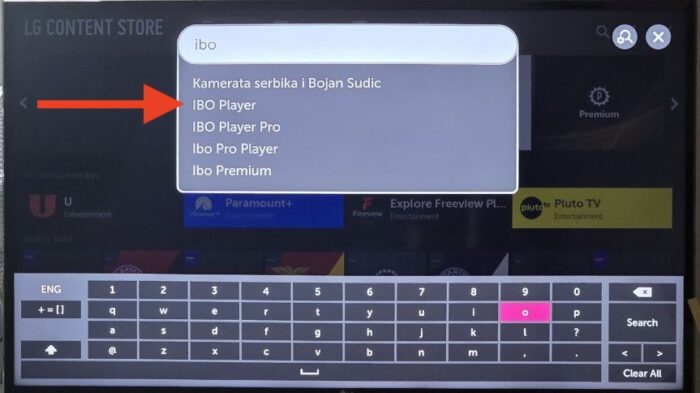
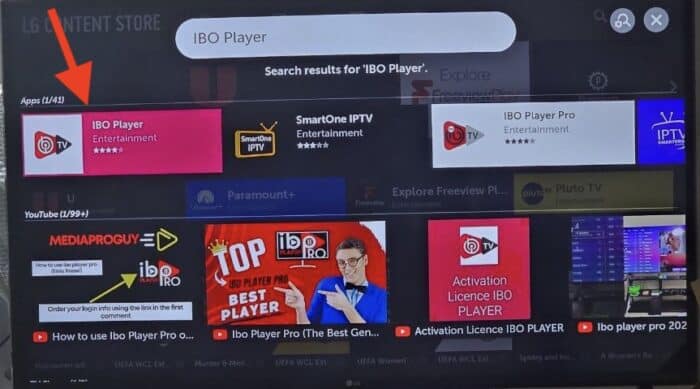
- Open the LG Content Store or the Samsung Apps store from your television's home bar.
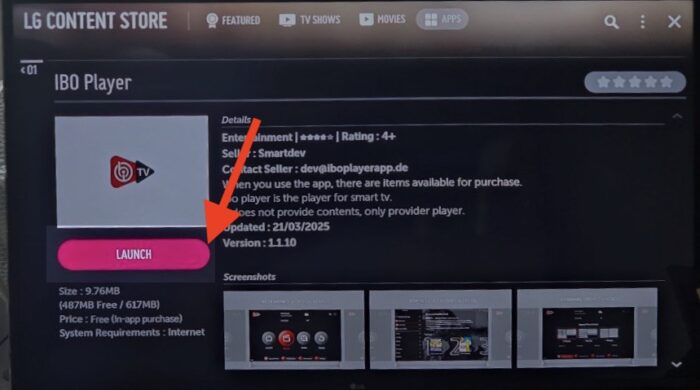
- Search for IBO Player and install it. Take care to select IBO Player itself rather than a similarly named alternative.
- Launch it and write down the MAC address and device key shown on the welcome screen.
How to add your IronTV playlist
This is the step that turns an empty app into 23,000+ channels. It is done once, from any browser — a phone is perfectly adequate.
- On a browser, open the IBO Player activation portal shown on your television screen.
- Enter the MAC address and device key from the app.
- Choose how to attach the IronTV line:
- Add Playlist (M3U / streaming line) — give the playlist a name such as “IronTV” and paste the M3U URL from your welcome email.
- Add XC Playlist — enter the server URL plus the IronTV username and password from the same email.
- Save, then close and reopen IBO Player on the device.
Paste, never retype. The single most common support ticket we receive is a mistyped playlist URL or a capital letter dropped from a password. Copy and paste both, and the line works first time.
Finding your way around the live TV section
The live grid opens on every category at once, which looks overwhelming for about a minute. Two settings fix that permanently.
Tidying the channel list
Open Settings › Manage Categories and switch off every group you will never watch. Most Canadian households keep Canada, USA, Sports, News, Kids and one or two international groups, which turns 23,000 entries into a list you can actually scroll.
Adding favourites
Highlight a channel, hold OK on the remote, and choose Add to Favourites. Your favourites group then sits at the top of the grid on every launch — worth doing for the ten channels you use nightly.
Searching
Press the search icon in the live section and type a fragment of the name. Searching “TSN” or “RDS” is far quicker than paging through a category.
Movies and series on demand
The Movies and Series shelves work like any streaming catalogue: browse by genre, open a title, press play. Series are grouped by season with episode lists, and the shelf refreshes weekly as 2026 releases are added. Anything you start is remembered in Continue Watching on the dashboard.
The settings panel, explained
- Network — confirms your connection and current IP; the first place to look if nothing loads.
- Parental control — PIN-locks adult categories. Set it before the children find the remote.
- Check for updates — keeps the app current; worth running if a channel misbehaves.
- Language — changes the interface language, including French.
- Application info — shows the MAC address, device key and expiry; support will ask for these.
- Clear cache — the standard first fix for stuttering or stale artwork.
- Manage categories — hide the groups you do not watch.
- Live TV player / VOD player — switch decoder when a specific stream struggles.
- Main screen background — cosmetic only.
- Auto boot on start — launches IBO Player when the television powers on, which makes it feel like a cable box.
Troubleshooting the three problems people actually hit
| Symptom | Most likely cause | Fix |
|---|---|---|
| App opens but no channels | Playlist not attached or mistyped | Re-add the playlist on the portal, then reopen the app |
| One channel freezes, others fine | Upstream feed changed | Message support — we re-map it, usually same day |
| Everything buffers in the evening | Wi-Fi congestion | Use Ethernet, or clear cache and lower the player quality |
Setup questions we are asked most
Which devices is IBO Player available for?
Android phones and tablets, Android TV boxes, Amazon Fire TV Stick and Fire TV, LG webOS and Samsung Tizen televisions, Windows, macOS, Linux and MAG-style set-top boxes. The same channel line-up loads on all of them.
Can I record with IBO Player?
No. There is no recording or PVR function. Catch-up on supported channels is the closest alternative.
Is IBO Player free?
The app is free to install and carries a small one-off licence fee from its developer after the initial period. That fee is separate from your IronTV subscription.
Can I watch on two screens at once?
No — neither the app nor an IronTV subscription supports it. One device at a time, as set out in our terms of service.
I am stuck. What now?
Send us the MAC address from Application info and a photo of the screen via our contact page or WhatsApp. Most installs are rescued in a single exchange, and the desk is staffed 24/7.
Ready to put this guide to use?
Start on the intro month, follow the steps above, and be watching tonight.